

Table of Contents
Q2 2026 Release Notes
April - June 2026
New Features
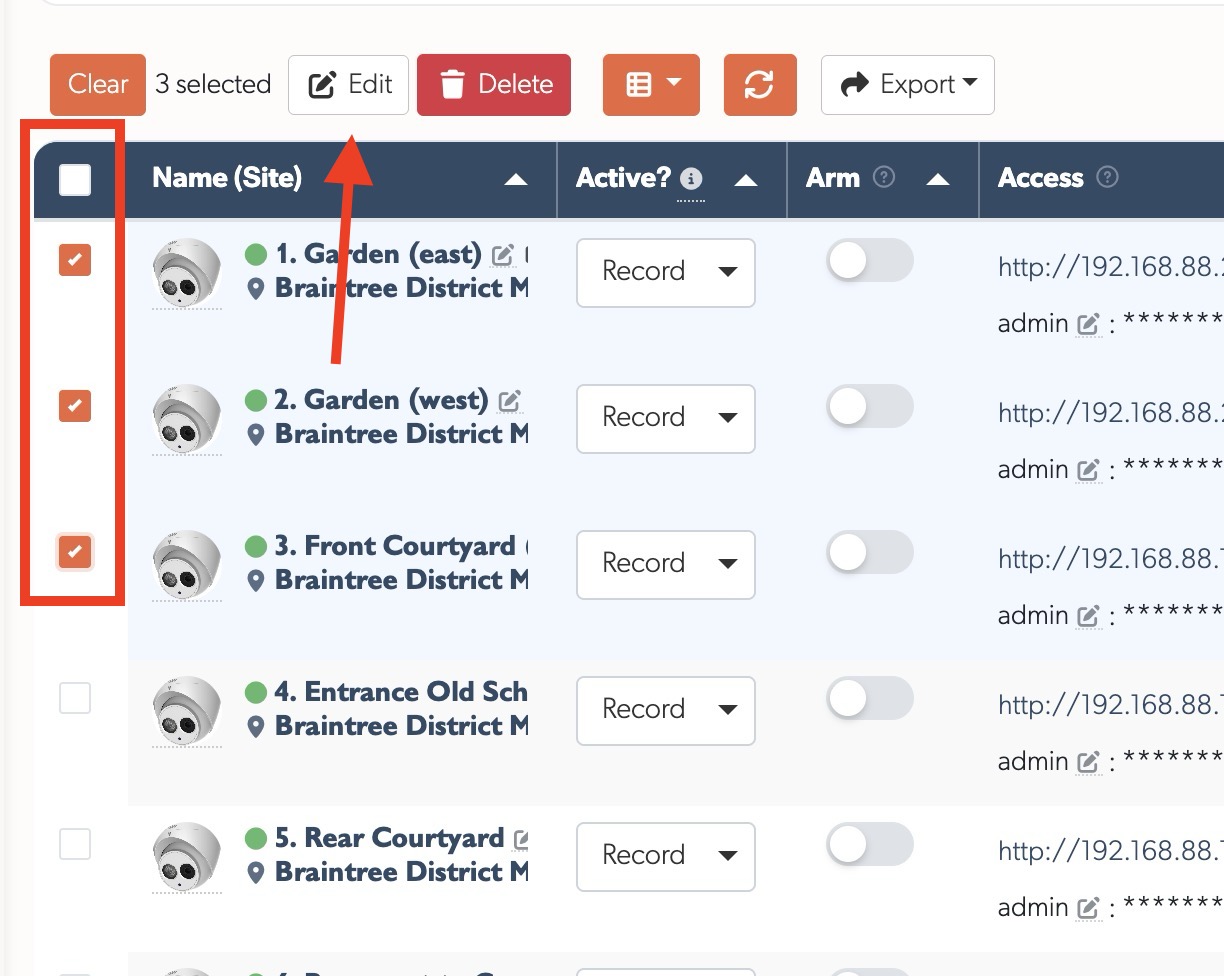
Camera Bulk Edit & Delete: Select multiple cameras using checkboxes (including select all), then bulk edit settings (active mode, credentials, recording mode, schedule, notifications, and cloud) or delete them in one operation. A confirmation dialogue lists all affected cameras before any destructive action
TetherBox Bulk Edit: Select multiple TetherBoxes from the list (including select all), press Edit, and change settings shared across them in one go: time zone, low bandwidth mode, network and reboot options, and offline notifications. Staff get an extra tab for commercial and firmware fields like invoice price, billing frequency, demo and important unit flags, recording segment duration, and channel limit. Only the fields you tick are applied, and any units that fail validation are listed back to you while the rest still save
ANPR Plate Bulk Edit & Delete: The ANPR Plates list on a camera now has the same multi-select as the cameras list. Tick several plates (or select all), then change their group (whitelist or blacklist) and expiry date together, or delete them in one step with a confirmation that lists every plate affected
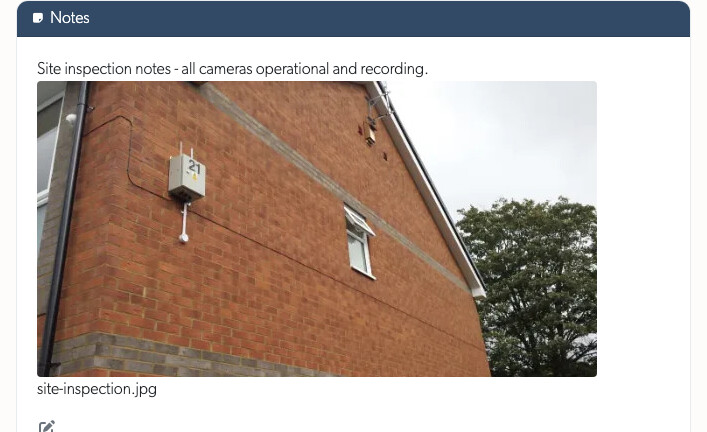
File Attachments in Notes: Notes editors now support file uploads via drag & drop, paste, or the attach button for images, documents (PDF, Word, Excel, PowerPoint, CSV), and videos (up to 100MB). Attachments display as thumbnails and can be clicked to view full-size. A new management page under Settings shows all uploaded attachments, which resource they belong to, and lets you filter by status (active or orphaned) and file type to find and delete unused files
One-Click Camera Activation: Network devices flagged as requiring activation now show an Activate button next to their IP on the Devices page. A single click sets a secure password and sensible defaults on the camera or recorder, ready to use straight away
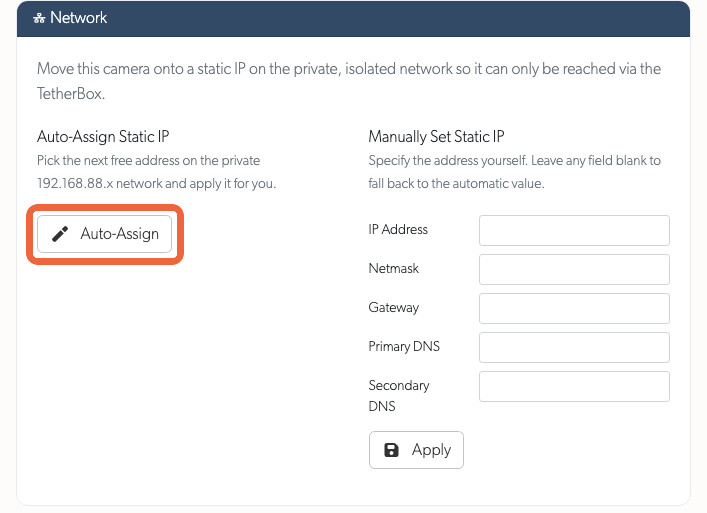
Network Tab: Static IP Assignment: Cameras with a working native API and a TetherBox running 6.14 or newer get a Network section on the API tab. Auto-Assign picks the next free address on the private 192.168.88.x network in one click, or fill any of the IP, netmask, gateway and DNS fields manually. Once applied a confirmation dialogue explains it can take up to two minutes for the camera to reboot and reconnect. The Auto-Assign button greys out (with a tooltip explanation) for cameras already on a private static network
Monitoring Station Operator Console: A focused full-screen console for monitoring-station operators. Each event opens with a toolbar to set it pending, release it back to the queue, mark that action was taken, close and jump straight to the next event, call a supervisor, or escalate the event by email to the on-call supervisors. Escalating also protects the footage automatically, keeping its recordings for 30 days so they are still there when the supervisor picks it up. A new Operator user type sees only the events for the zones it is assigned, with event-list defaults tuned for sit-and-watch use. Any operator can be marked a Supervisor to receive escalation calls. A new help guide walks through the whole workflow
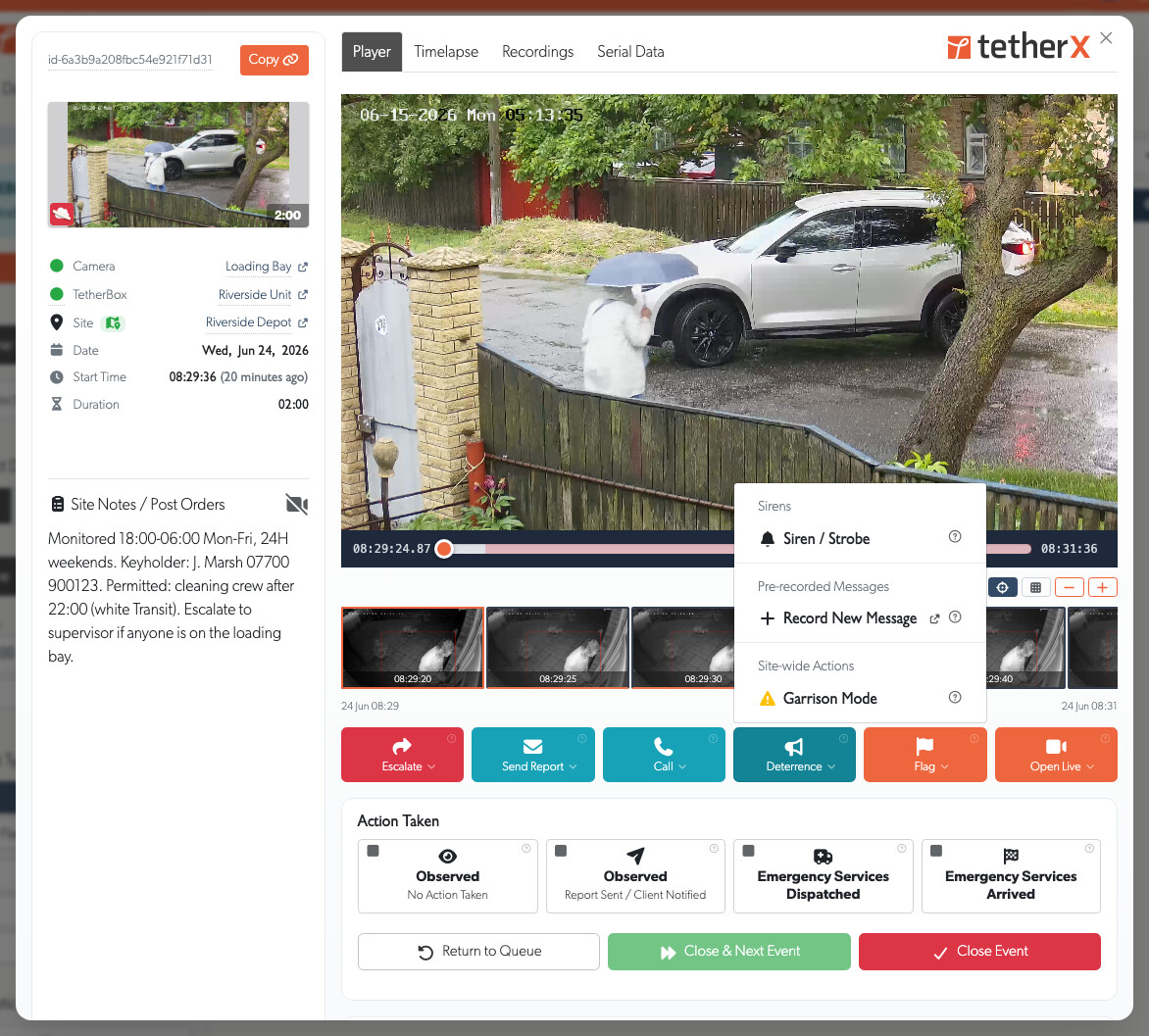
Redesigned Event View: Opening an event now brings it up in a focused pop-up over the events list, so you keep your place while reviewing an incident and close it to go straight back. Regular users and monitoring-station operators now share the same clean layout, with the metadata in a tidy column beside the player. Each event thumbnail carries a status pill (pending, closed or hidden) with a tooltip showing who actioned it, when, and how long it took from the event starting to being dealt with. A new Control Room panel on the event explains what a monitoring station has done, observed, report sent, or emergency services dispatched and arrived, and lets you help by reviewing and closing false events yourself
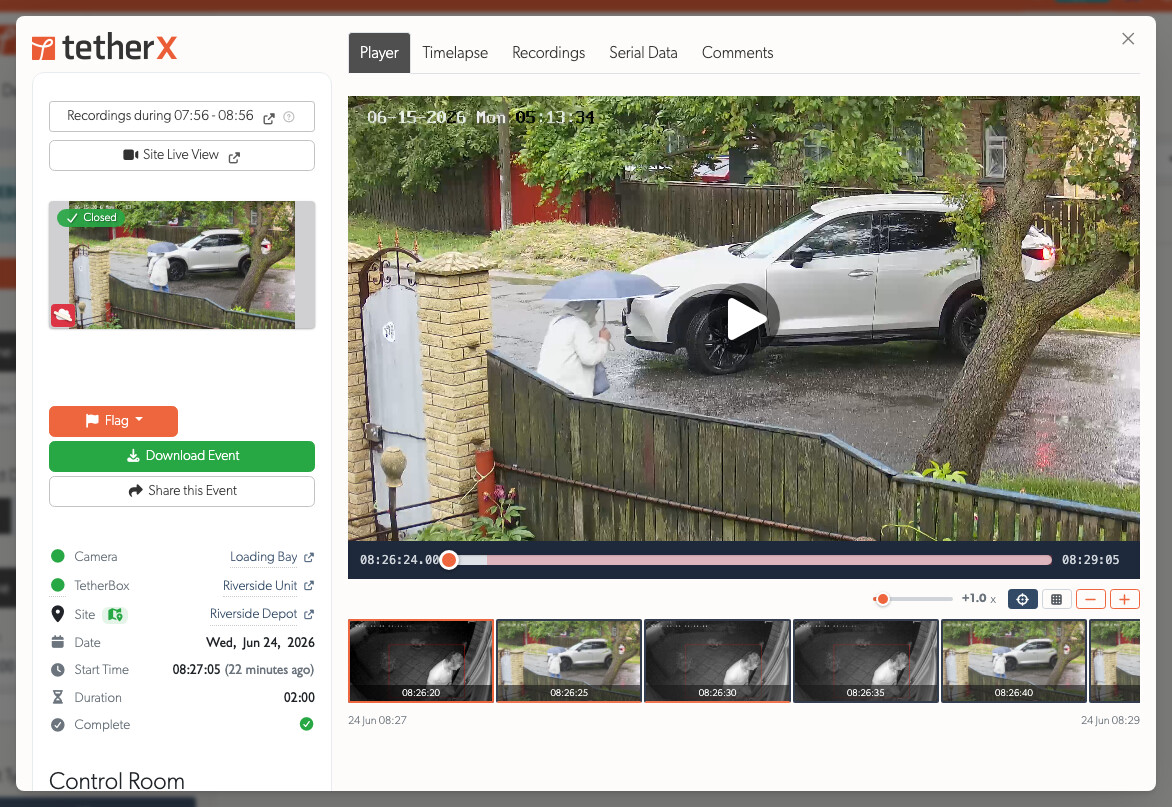
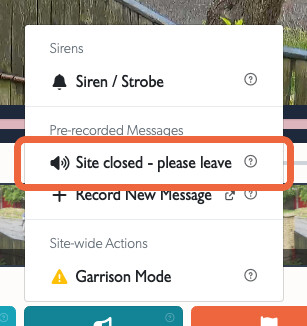
Audio Challenge (Talk Down): Speak to people on-site straight from a camera's live view or the monitoring-station console. Hold a button to talk, play a pre-recorded warning, or hold a full two-way conversation on cameras with built-in echo cancellation. Each camera chooses where its audio plays: the TetherBox 3.5mm jack, a network (IP) speaker, or the camera's own speaker. IP speakers are registered once from the Devices page and then appear as a speaker output on any camera on that TetherBox. Cameras with talkdown available are marked with a TALK badge in the camera picker, and a new help guide lists the supported camera and speaker brands
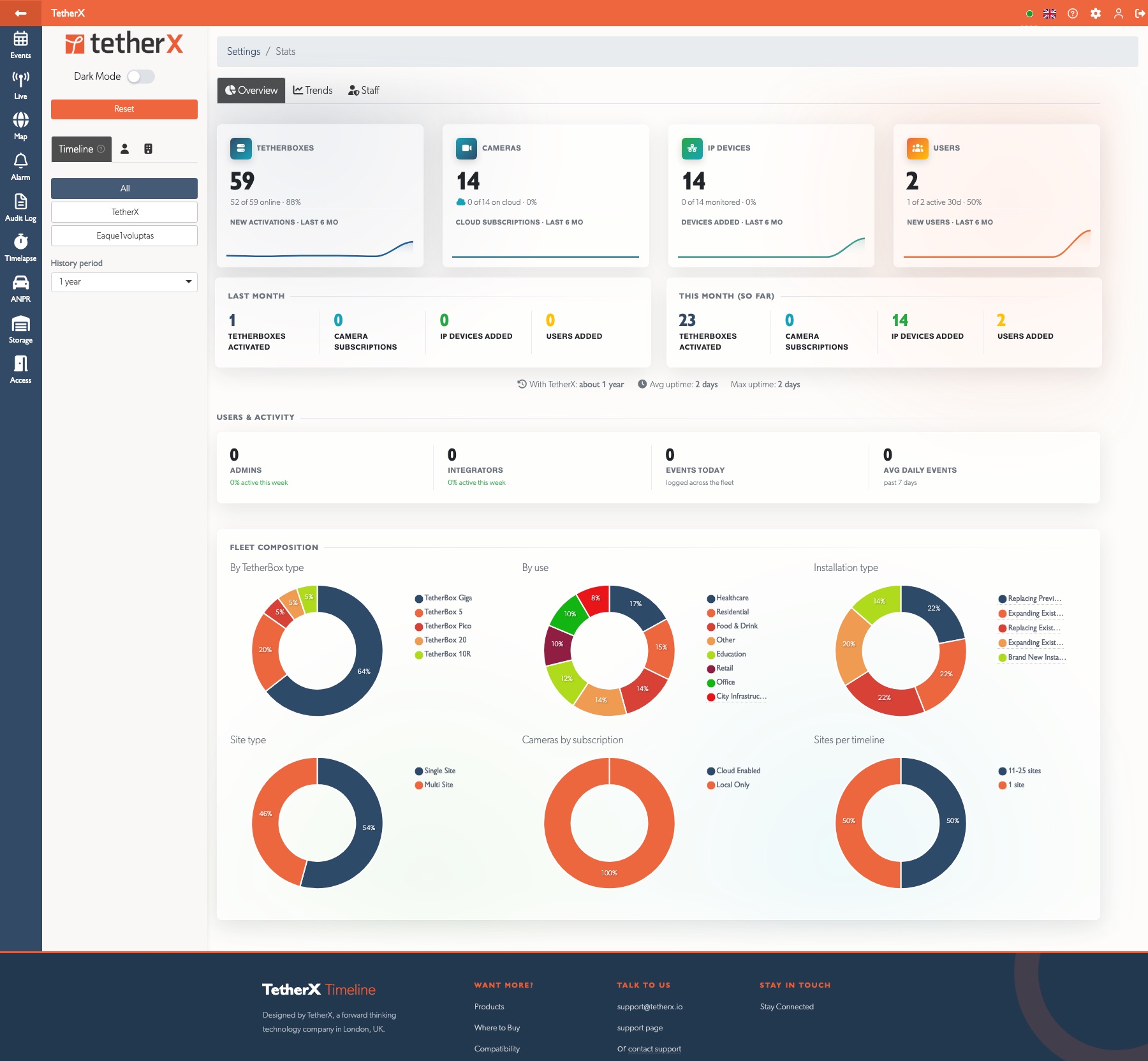
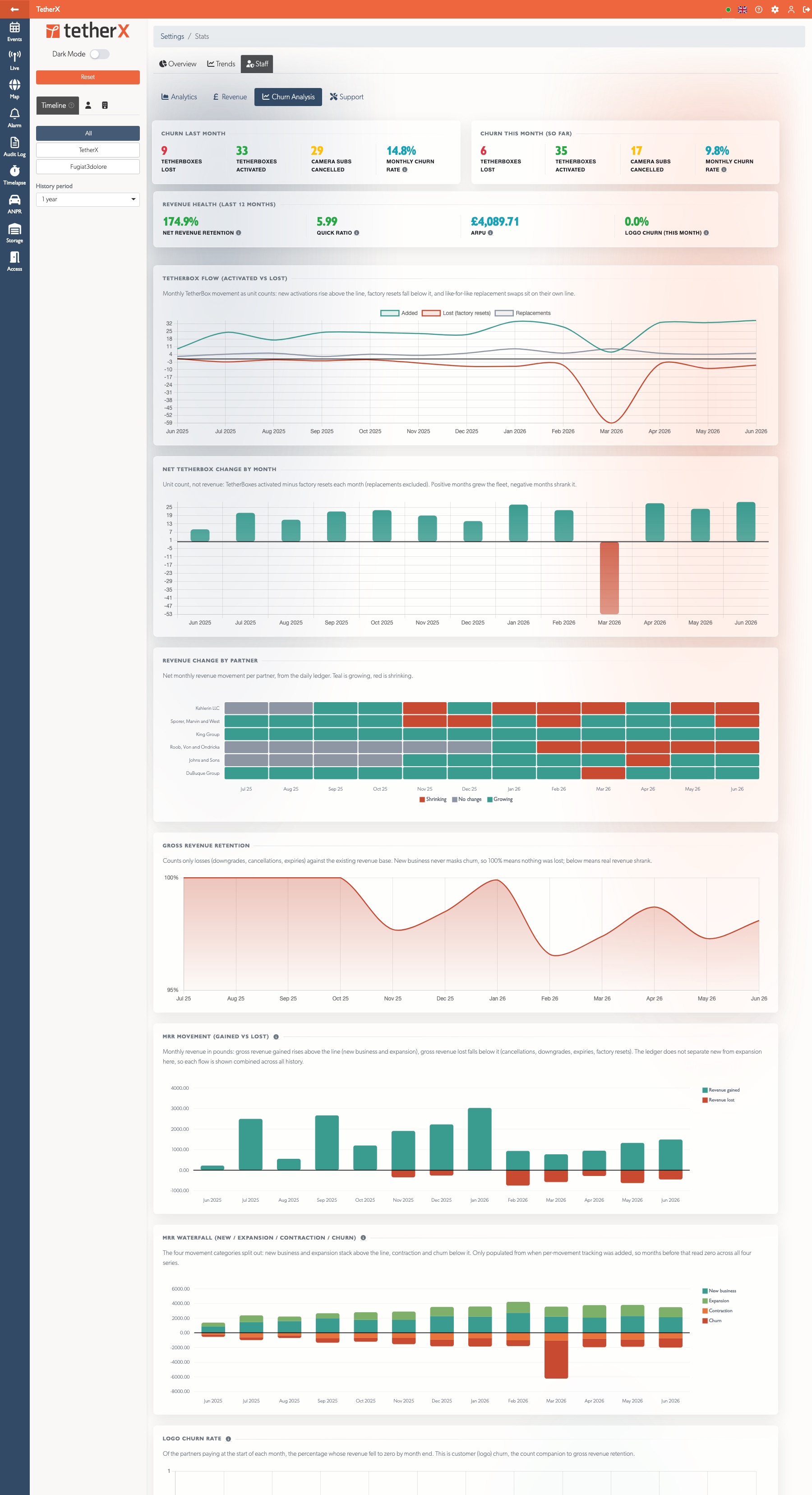
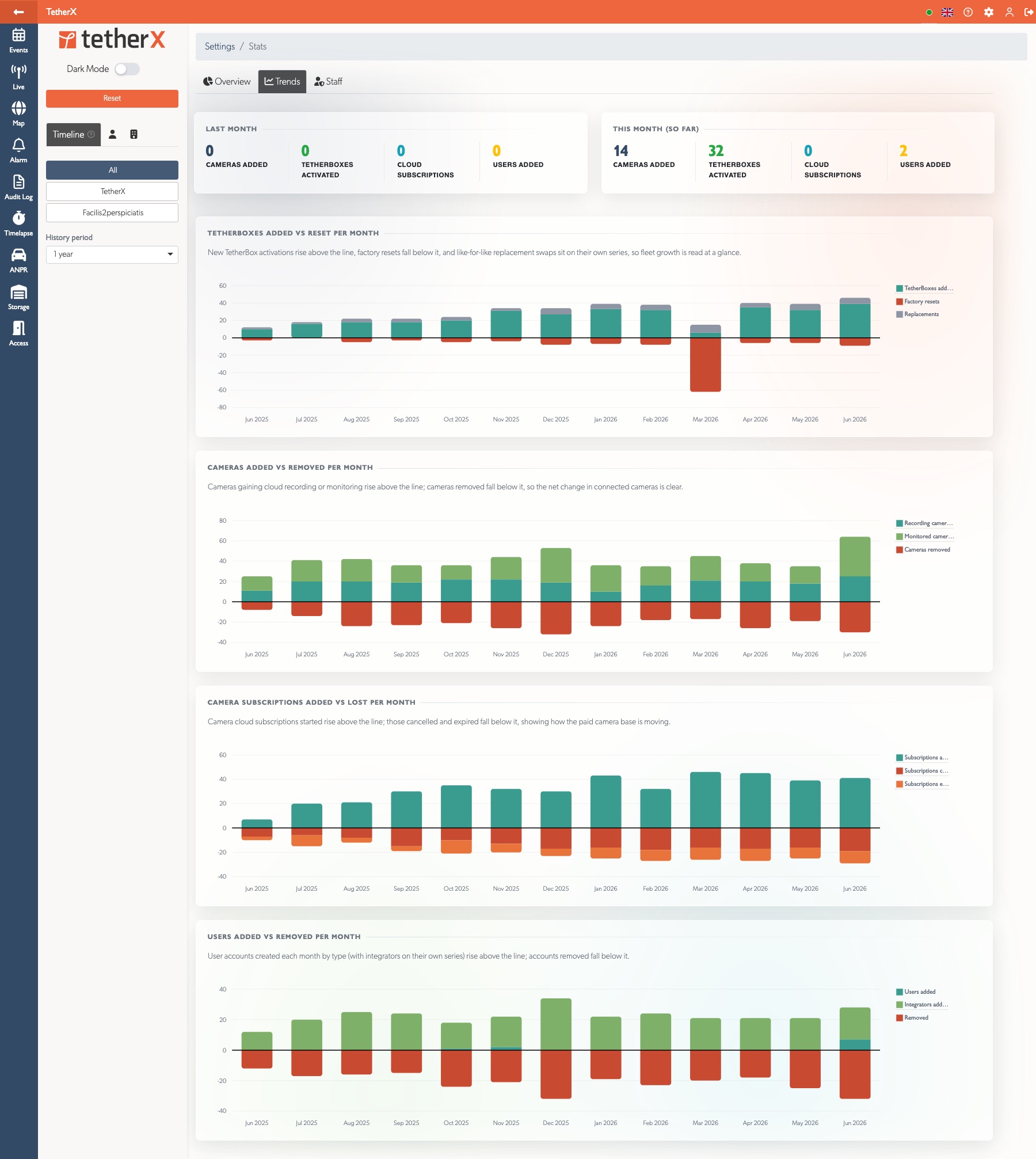
Redesigned Statistics Dashboard: The Stats page is rebuilt around three tabs. Overview shows fleet headline tiles with six-month sparklines and doughnut breakdowns (TetherBox type, use, installation type, site type, camera subscription and sites per timeline). Trends plots TetherBoxes, cameras, camera subscriptions and users added versus removed each month, gains above the line and losses below it. A new Churn Analysis sub-tab brings the subscription numbers together: net revenue retention, quick ratio, average revenue per partner and logo churn as headline figures, plus a TetherBox flow chart, gross revenue retention, a per-partner revenue heatmap, and an MRR waterfall splitting new business, expansion, contraction and churn for each month. Every figure reads from a write-once activity ledger, so reassigning or deleting a device never rewrites past history
Improvements
- Richer Event Classification (work in progress): Events are being reorganised around fifteen meaningful categories (motion, objects, movement, clothing, behaviours, vehicle, anpr, tampering, environmental, etc.) so you can filter for exactly what you care about. Cleaner notifications (no more stutters like "Motion Detected detected"), a help page that updates automatically whenever a new event type is added, and room for new detections like PPE checks, vehicle violations and demographics
- Tap a Notification to Open It: Push notifications now take you straight to whatever they are about. Tap an alert and the app opens that exact page, the event, TetherBox, alarm or timeline, instead of just the home screen. This works correctly even when you use clouds in different regions, and escalations or reports sent from the monitoring-station console now also push an alert to any recipient who has a platform account, linking them straight to the event
- Exclude Motion Filter: The Events filter sidebar has a new Exclude motion toggle. Switching it on hides plain motion events, both TetherBox motion detection and basic camera motion, along with continuous recordings, leaving only the meaningful detections such as people, vehicles, intrusion, tampering and others. A quick way to cut through the noise on busy sites
- Faster Events Filtering: Picking a date in the Events filter sidebar now applies straight away instead of waiting for the Apply button, with a one-click clear icon inside the field. Box-select can start anywhere in the grid, including the weather and date header row, and the list scrolls automatically as you drag towards the bottom
- Flag Events for a Set Period: Flagging an event now offers a retention period (for example 7, 30 or 90 days) instead of a plain on/off toggle. The flag clears itself automatically once the period passes, so an important event stays highlighted for exactly as long as it is needed and no longer
- Resize Event Thumbnails: The event player timeline strip, and the Timelapse and Recordings tabs, now have plus and minus buttons to make thumbnails larger or smaller, with a grid view that fills the available width cleanly instead of leaving a ragged edge. The chosen size is remembered per view and animates smoothly, the buttons grey out at the smallest and largest sizes, and on a phone the grid always keeps at least two columns so thumbnails never run off the screen. The currently playing frame in the timeline strip is clearly highlighted, and the strip now only scrolls sideways within itself so the page no longer jumps when following playback
Full-Screen Event View on Phones: Opening an event on a phone now fills the screen and reads as one simple page you scroll, the video at the top stretching edge to edge with the event details following underneath. The scrub bar sits directly under the video as part of the player, with a larger, more finger-friendly handle, and the tabs along the top scroll sideways when there are more than fit on one line. The timeline thumbnail strip and its controls are tucked away on a phone, where they added little, and anything already shown elsewhere, the back button and the still preview, is no longer repeated
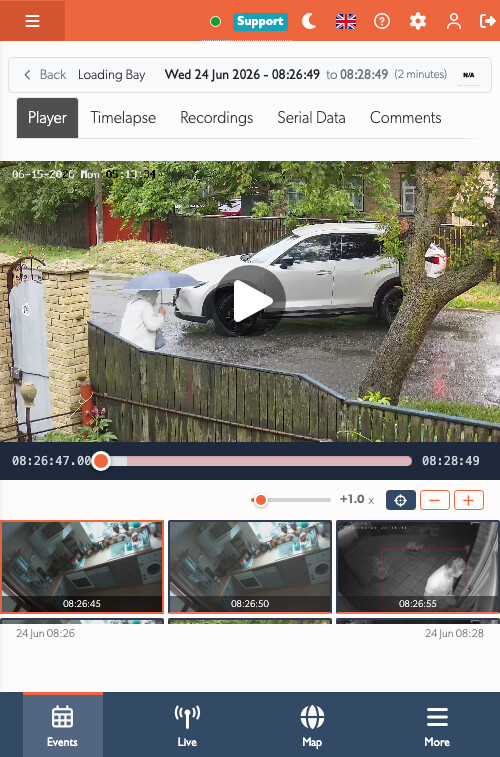
Events Update Live While Open: An event you have open now keeps itself up to date as it develops. New footage is added to the player and timeline as it arrives without interrupting playback, and a flag set by another operator shows straight away, all without throwing you back to the first tab or losing your place. The open event is also remembered in the address bar, so refreshing the page or using the browser back button reopens the same event on the same tab, and stepping to the previous or next event keeps that in step too. Scrubbing over footage that has only just arrived now shows the correct preview frame for that moment instead of an older one
Redesigned Tables: All data tables rebuilt with resizable, reorderable, and hideable columns, preferences remembered per table, a search bar, column visibility toggle, and CSV/Excel export. Formatted columns (CPU usage, storage size, time durations) now sort by their underlying values, the Name column is always second and bold, clicking a row opens the detail modal, and related links (company, user, timeline) open in modals instead of navigating away. The Exports page uses the same format; while a table loads the dimming overlay stays light and the headers clickable so you can re-sort without waiting; and camera name columns show a model image (or a colourful letter avatar), also on the TetherBox and Health Cameras tabs
Clearer Session History: The audit log now reads in plain language, with each action naming the site, camera, zone, user or event it relates to. Cameras show a health dot and live hover preview, users a type icon, and recordings and events a thumbnail. Filters and parameters resolve IDs to names with links, camera passwords stay hidden behind an eye toggle, Windows 11 is now told apart from Windows 10, and noise like repeated page views, tab switches and preset look-ups no longer clutters the list. The timestamp is now a button that opens the session. TetherBox maintenance actions now read in plain language too (for example "Rebooted", "Formatted the drive on" or "Reset the USB device on" the named unit) instead of raw command names, in every supported language
Device Service Filtering: Filter devices by detected service (Web, SSH, Video, VNC, Other) or by specific open ports. Service badges appear next to device names showing available interfaces at a glance
Private/Randomised MAC Warning on Devices: The Devices page now shows an information note, with an inline help tooltip, explaining that smartphones and laptops with randomised MAC addresses do not appear in the list, with steps for turning the feature off on iOS and Android so a specific device can be monitored
Cameras Behind Wireless Bridges Keep Recording: Cameras reached through a wireless link that hides their individual MAC address (such as a Ubiquiti airMAX bridge) no longer lose their saved credentials and IP when the TetherBox cannot pair them to a network device. The Device Detection help page gains a section explaining how to enable WDS transparent bridging to restore per-camera tracking
Redesigned Health Summary: The Health page summary tab has a clearer at-a-glance design with a fleet health score ring, a plain-language status headline, and metric cards that jump straight to the matching list when clicked. The timeline filter now stays applied after a page refresh, and the figures count only activated TetherBoxes so units not yet assigned to a site no longer skew the totals
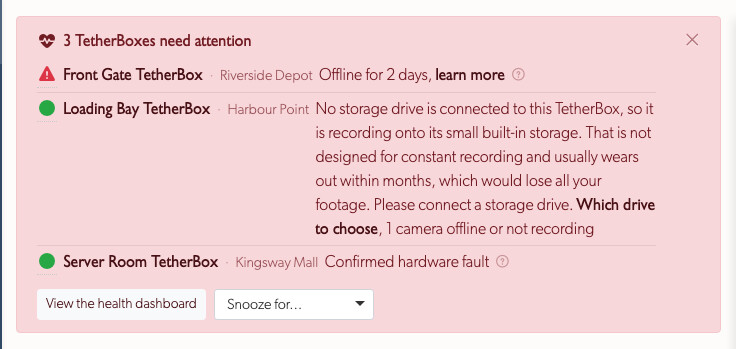
Health Alert Banner: Integrators and staff now see a banner across the top of the events page whenever a TetherBox needs attention. It lists only critical problems, units offline, cameras that have stopped recording, hardware faults and the like, with a link straight to each affected unit. Footage gaps and other non-critical warnings stay off the banner and remain on the unit's Health page. The banner can be snoozed, and an offline unit you already know about can be cleared from it by setting that unit inactive on its settings page
Storage-Slow Event Indicator: Events recorded while a TetherBox's storage was running slow now carry a dedicated icon on the timeline, so transient storage stalls are visible at a glance instead of silently shortening or emptying the event
Disk Write Error Detection: TetherBoxes now report disk write errors (EIO) coming back from the kernel. A new I/O Errors badge appears on the unit page and a dedicated panel lists the affected drives, so a disk that is failing writes is visible before it silently starts dropping recordings
Faster Events, Cameras and Recordings Pages: Removed hidden per-row database lookups that accumulated on long lists, so page loads stay snappy as accounts grow
Redesigned Page Loading: Cleaner page load indicator with a subtle indeterminate progress bar and branded loading overlay. Fonts load with higher priority to reduce text reflow during navigation
Notes Improvements: Links and attachment images in note previews (map callouts, event popovers) now open in a new tab or full-size preview instead of navigating away. Images are constrained to fit the container, and callouts no longer wait for images to load before appearing
Consistent Confirmation When Saving and Sharing: Sharing an event by email, and saving any settings form that opens in a pop-up, now finish the same way every time. The pop-up closes and a confirmation appears, so you always know the action went through. If something you entered needs fixing, such as an invalid or missing email address, the message now shows next to the field inside the form so you can correct it and try again, rather than a separate error pop-up. Reopening the email share form always starts clean, with no leftover message from a previous attempt
Consistent Inline Edit Buttons: The small tick and cross buttons that appear when editing a field in place (such as a camera's username or password) are now the same size and style everywhere, instead of the username buttons looking oversized next to the password ones. A mistranslated Spanish Cancel label has also been corrected
Save and Delete Buttons Always in Reach: When you edit something in a pop-up, a user, camera, site, company, TetherBox, zone and more, the Save and Delete buttons now stay pinned along the bottom of the window instead of scrolling off the end of a long form, so they are always one click away. The full-page edit screens are unchanged
Unsaved Changes Warning on User Profile: Editing a user, then closing the profile modal or navigating away with pending changes, now shows a confirmation dialogue so an accidental click no longer loses the edit. The same warning also appears after a failed save (validation error) until the change is saved or discarded
Smarter Company Pre-Selection for New Integrators: Adding an integrator only fills in the company automatically when you are yourself an integrator with a single company, so the new account inherits it. Staff, admins, and integrators who work for several companies now start with no company pre-selected and choose one deliberately, instead of an unrelated company being assigned by accident
Pause All Notifications: A single master switch at the top of a user's Permissions & Notifications tab stops every push and email notification for that user at once, and hides the individual settings until it is switched back off so there is nothing else to untick. Account emails such as activation and password resets are unaffected. Handy for someone on leave, or a shared account that should stay quiet, without losing its individual preferences
Admins Can Edit Timeline Access: Admins editing another user could pick timelines under Timeline Selection but pressing Apply failed with a generic "Timeline Update Failed" message, leaving the list in a confusing state. Applying now works for admins, and on the rare occasion any change cannot be applied the dialogue shows the real reason instead of a generic message
DMS Coordinate Support: Site coordinates can now be entered in degrees-minutes-seconds format (e.g.
73°42'14.5"W) and are automatically converted to decimalComplete Spanish, French, Hebrew, Russian and Ukrainian Translations: Filled every missing interface string across the five non-English languages, so newer screens now read in the chosen language throughout instead of falling back to English
Live View Recovers on Its Own: When a live camera stream hits a glitch, a decoding error or a brief network drop, the player now recovers by itself and keeps streaming, instead of stopping on an error screen that needed a manual reload. The live view also runs on a lighter video engine so the page loads a little faster, and the latency reading and live timestamp now update every second
Instant Dark Mode Toggle on Mobile: The day and night button in the mobile menu now switches theme straight away without reloading the page, swaps its own sun and moon icon to match, and works on every page (previously it relied on the sidebar switch and did nothing on pages without a sidebar). On desktop the top-bar language, help and admin menus now also open on hover, not only on click. Dark mode is also easier to read throughout: alert and health-banner links and their status dots, button labels such as Send Report and Close & Next Event, menus, popovers, tooltips, help articles and forms now have clearer contrast, map zoom controls match the dark theme, buttons such as Close Event now line up evenly with the buttons beside them, and the events-page health banner wastes less space on phones with a smoother close animation
Updated Documentation: New articles for TetherX AI, the Camera API Tab and Static IP Configuration; refreshed Notifications (now with a single table of which alerts each user type receives), Health Report and Exporting Cameras; a new Reducing False Notifications page pulling the false-alert guidance into one place; clearer User Types guidance on when to choose Operator for a professionally monitored site; Connecting to DVRs and NVRs now covers splitting a DVR/NVR across multiple TetherBoxes; and the Hardware Specifications page is reorganised into a concise overview with new CPU Recommendations, Storage Hardware Recommendations and Raspberry Pi TetherBox companion pages. Calipsa and DeepAlert integration docs have moved out of the knowledgebase, both integrations remain fully supported (contact support)
API Changes
Everything developers need in one place. The full interactive reference lives under Developers.
New Endpoints
TetherBox Uptime Probe:
GET /api/v3p/tetherboxes/:serial/upis a passwordless public endpoint that reverse-proxies through the VPN to the TetherBox itself. Returns HTTP 200 when the box is reachable and its app is responding, or a 5xx error otherwise. Designed to be plugged straight into HTTP uptime monitors such as Uptime Kuma or Uptime Robot without needing an API token or any response parsingBulk ANPR Plate Changes: Two endpoints apply one change across many plates in a single call.
POST /api/v3p/anpr_plates/bulk_updatesets the same group or expiry date on every plate id you pass;POST /api/v3p/anpr_plates/bulk_destroyremoves them. Both return a per-plate result so you can see exactly which succeeded and which were rejected, plate ids belonging to cameras you cannot access are skipped rather than failing the batch, and both take a JSON body so they work reliably from any client
Newly Documented Endpoints
These public endpoints were already live but missing from the reference. They are now fully documented, each with its parameters and an example response:
GET /api/v3p/anpr_plates/:idandPUT /api/v3p/anpr_plates/:id- read and update a single ANPR plate, alongside the existing list, create and deleteGET /api/v3p/zones/:id/snapshot- single still JPEG snapshot from a zone's camera, fetched live over the VPN, with optional quality, width and height. Honours the camera's remote viewing permission and live scheduleGET /api/v3p/anpr/:id/plate_image- the cropped number plate image (JPEG) for an ANPR detection, the same URL exposed asimage_urlon each detection in the ANPR listGET /api/v3p/relay_devices- list standalone network relay boards (door strikes, gates, generic IO), as distinct from the camera-attached relays controlled through the zone endpointsPOST /api/v3p/relay_devicesandDELETE /api/v3p/relay_devices/:id- add and remove relay boardsPOST /api/v3p/relay_devices/:id/on,/offand/status- switch a relay output on or off and read its current stateGET /api/v3p/timelapse/:zone_id/:date/thumbnail- the daily timelapse thumbnail (JPEG) for a zone on a given date
Bug Fixes
- Event playback is more reliable: The event player no longer gets stuck on an endless loading spinner. It now buffers every remaining segment after you scrub, steps over the tiny gaps that can form between recordings, recovers from quick back-and-forth scrubbing near the end of a clip, and if playback genuinely stalls it shows a clear Reload prompt instead of hanging, including on iPhone and on slow or unstable connections. Recordings stored only in the cloud now download without "Access Denied" errors, filmstrip and timelapse thumbnails fall back to cloud storage (or the TetherBox) when the device copy is missing, and the "All" display mode shows pending, hidden and closed events correctly on first load. Events closed in bulk no longer reappear under the "Open" filter.
- Phones and tablets: A sweep of fixes for the mobile event and live views. Full-screen event and camera views now start streaming straight away, the multi-camera grid lines up cleanly between the top and bottom menus, the menu button no longer disappears after viewing an event, and the event details panel and its actions stay reachable above the bottom menu. The scrub preview stays solid while dragging, swiping now scrolls the page (panning only starts once you have zoomed in), a recovered camera clears its "No Signal" message on its own, and the white strip beside the iPhone notch and the off-centre loading spinner are gone. The "..." thumbnail menu now opens anchored to its button and stays clickable across the events list, the player and the operator console. Opening an event in the operator console on a phone now scrolls, and every page reserves space for the bottom menu, so the escalate and report tools, the Action Taken toggles, the close buttons and the comment box at the very bottom are all reachable instead of being cut off behind the menu.
- Live view full screen: Double-clicking a live camera to open it full screen no longer shows a second loading spinner stacked over the first while the stream connects. Live cameras now recover on their own when you switch back to a tab the browser had paused in the background, jumping straight back to live instead of sitting frozen.
- Health, devices, tables and the platform: The Health Report now flags only genuine problems, real over-temperature drives (and an NVMe drive is no longer branded faulty over a single one-off media read error, which can follow an unclean shutdown and clears itself; it is confirmed faulty only when the error count climbs or the drive's own S.M.A.R.T health flags show real wear), packet loss confirmed by footage gaps, and inadequate or missing recording storage, and its summary no longer claims all is well while devices are offline (admins are also no longer auto-subscribed). Offline monitored devices are always visible now on both the Devices page and the TetherBox IP Devices tab, online and active filters default to showing everything, a TetherBox wrongly shown offline relearns its address automatically, notes and alarms carry over when you replace a unit (alarms move to the replacement with their site and timeline, alongside the cameras and zones), and deletions show a clear confirmation (with the reason when one is blocked). Tables are fixed for dark mode, server-side pagination counts, height after reloading, ANPR pagination and the column-selector dropdown clipping; the events-page health banner snooze now saves reliably, opening a modal no longer scrolls the page behind it, and a user with an uploaded profile picture in the Users list now shows their name beside the avatar instead of beneath it.
- Bulk download explains when events cannot be saved: Selecting events with no cloud backup for a bulk download no longer shows a confusing error. You now get a clear message naming the cameras that need cloud recording, instead of a download failure.
- Storage unit diagrams open again: The Diagrams button on the Storage Units page no longer hangs on a loading spinner. The availability chart now opens correctly, including when no units have been added yet.
- Events grid keeps your chosen thumbnail size: When a new event arrives and the monitoring strip slides in, the events grid no longer drops a column (for example from three thumbnails per row to two). Your selected size now stays put as events come and go.
- Events page stays fast in long sessions: On a busy site the events page could gradually slow down as more and more events built up on screen, until opening an event and switching the tabs inside it began to lag and the page felt sluggish, most noticeably for monitoring operators leaving it open all day. The page now keeps only the events near what you are looking at live, so it stays quick to scroll, open and tab through no matter how many events have streamed in. Closing an event also fully stops its video now, instead of leaving the player running in the background where, over a long shift, several stacked up and could eventually freeze the tab.
- Show/Hide Passwords button on a camera: The Show Passwords button in the Camera URLs panel now toggles back and forth on every click. Previously it changed to Hide Passwords on the first click and then stuck there, so the camera URLs could not be re-masked without reloading the page.
- NAS storage shows on the Storage tab again: A connected network share (NAS) is listed again on a TetherBox's Storage tab, with its used space and capacity, and the table now matches the other storage tables on the page. Recently the share stopped appearing because of a change in how it is named on the unit.
- No more stuck "Still loading" screen: If the app took a long time to load (for example every browser tab reloading at once after the computer woke up) the page could show a "Still loading" message and stay stuck on it even once the app was ready. The loading screen now clears itself the moment the page is usable.
Statistics
| Metric | Value |
|---|---|
| Commits | TBD |
| Lines added | TBD |
| Lines removed | TBD |
| Net change | TBD |