

Table of Contents
Camera Notification Settings
Control which analytics events from your Cameras trigger notifications. This is useful when cameras send multiple event types but you only want alerts for specific ones - for example, if your cameras use basic motion for DVR recording but you've configured line crossing or intrusion detection, you can ignore the motion events and only receive alerts for the analytics that matter.
For Operators vs End Users
Monitoring station operators see all events flowing in real-time on the Events page regardless of notification settings. The key setting for operators is Always Ignore - events added here won't appear at all, reducing noise from unwanted event types.
End users receive push notifications (iOS/Android) and email alerts based on these settings. Users configure their notification preferences in their profile. The Always and When Armed settings control when these alerts are sent.
Configuring Event Filters
- Go to Cameras and select the camera you want to configure
- Click the Notifications tab
- Configure each priority level:
- Always Ignore - Events that are completely suppressed; they won't appear for operators or trigger alerts.
- Always - Critical events that send alerts regardless of arming status (Video Lost, Tamper, Storage Failure).
- When Armed - Events that send alerts only when the camera or site is armed.
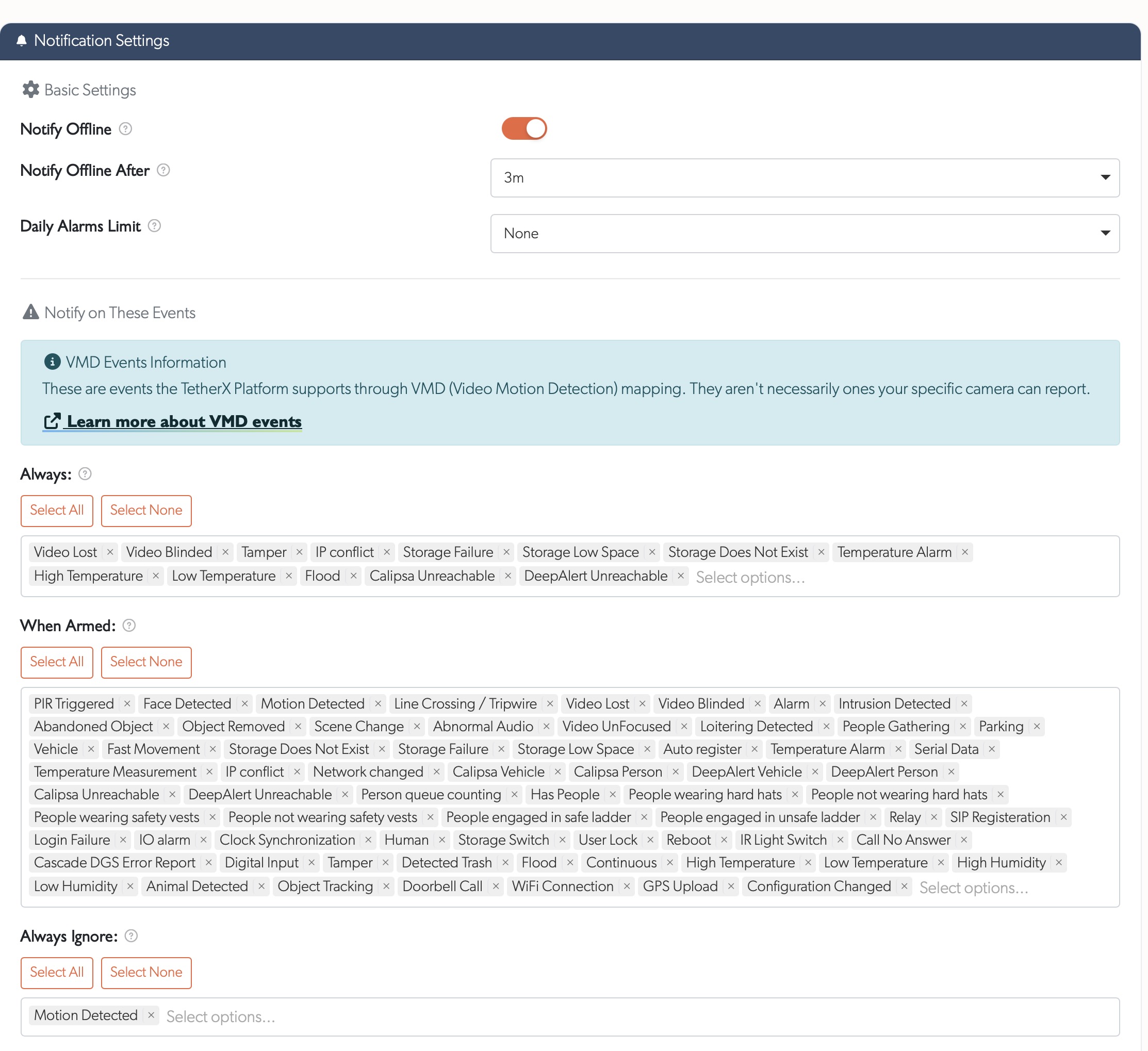
- Use the multiselect dropdown to add or remove event types - type to search, or use "Select All" / "Select None" for bulk changes
- Changes save automatically
Examples
- Operators - suppress motion when using analytics - Add "Motion Detected" to Always Ignore. Line crossing and intrusion events will still flow through for monitoring, but basic motion won't clutter the event feed.
- End users - system alerts only - Click "Select None" in When Armed to receive push/email alerts only for critical system events.
Better Results with VCA and Smart Motion
Cameras with Video Content Analytics (VCA) or Smart Motion Detection classify what they see (people, vehicles, line crossing, loitering) instead of firing on raw pixel motion. Configure those rules in the camera's own interface, then add basic Motion Detected to Always Ignore here so only the analytics events come through.
See Reducing False Notifications for the full set of options, including TetherX AI, image masks and these per-camera settings.
Troubleshooting
- Events not being ignored - Check the Events page to verify the exact event type name your camera sends; some cameras use different names for similar detections.
- Not receiving notifications - Verify the event type isn't in Always Ignore, and that the camera/site is armed if using When Armed events.
Tip: See VMD Event Types for the complete list of supported event types. Your camera may not support all events depending on its capabilities and firmware.
Referenced in: